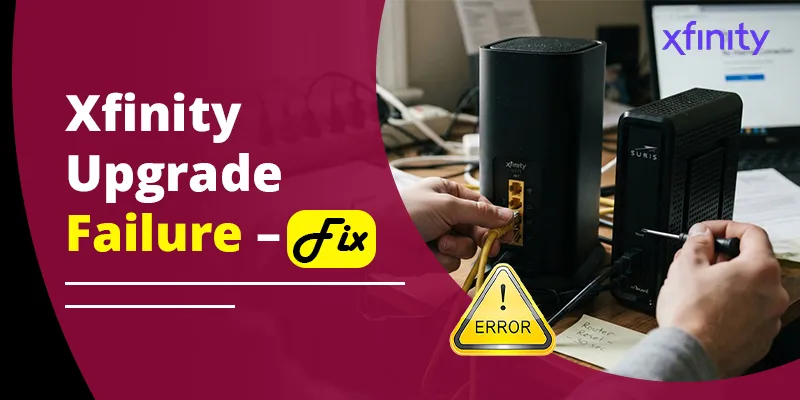
The Xfinity Stream “Upgrade Failure. Please restart the application” error usually means the app on your Amazon Fire TV or Firestick tried to update or check its version and failed. The most reliable fix is to force stop the app, clear its cache, unplug the Fire TV for 60 seconds, and make sure both Fire OS and the Stream app are fully updated. If many people are seeing it at once, the problem is often on Xfinity’s side. In that case the real fix is a new app version, and you can keep watching another way until it arrives.
This guide walks you through each fix in the right order. It also explains why reinstalling sometimes does nothing and how to tell a problem with your own device from a wider outage.
Quick Overview
- Force stop and clear cache: Settings > Applications > Manage Installed Applications > Xfinity Stream > Force Stop > Clear Cache.
- Power cycle: Unplug the Fire TV or Firestick from power for at least 60 seconds.
- Update Fire OS: Settings > My Fire TV > About > Check for Updates.
- Update the Stream app manually from the Amazon Appstore.
- Clear data or reinstall if the error comes back. You will need to sign in again.
- Check whether it’s widespread. If several Fire devices in your home show the error but Roku or your phone works fine, it’s likely an app-side issue. Watch on another device until Xfinity pushes a fix.
What Does “Upgrade Failure. Please Restart the Application” Mean?
It means the Xfinity Stream app couldn’t finish an upgrade or version check when it launched, so it stopped before loading your channels. Restarting the app is supposed to let it try again. When a plain restart doesn’t work, something is blocking the update or the check.
Most reports come from Amazon Fire TV devices, including the Firestick 4K, Fire TV Stick 4K Max, Fire TV Cube, and Fire TV Edition smart TVs from brands like Insignia and Toshiba. People who own both kinds of device often say Xfinity Stream on Roku keeps working while every Fire device in the house shows the error. That pattern matters. It tells you the problem is tied to the Fire TV version of the app, not to your Xfinity account or your internet plan.
Why Is the Xfinity Stream Upgrade Failure Happening?
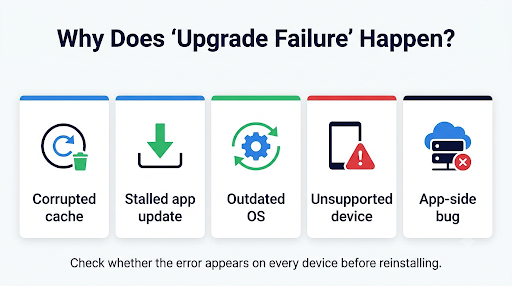
There are usually five possible causes. Knowing which one you have saves you from repeating fixes that won’t help.
| Cause | Common sign | Best fix |
| Corrupted cache or temporary data | Error on one device only | Clear Cache, then Clear Data |
| Stalled app update | Appstore shows “Update” but it never finishes | Free up storage, update manually |
| Outdated Fire OS | Older Firestick, updates not installed in months | Install the latest Fire OS update |
| Unsupported or very old device | First-generation Fire TV Stick or below Fire OS 6 | Use a newer Fire TV device |
| App-side bug after an Xfinity release | Every Fire device shows the error, Roku or phone works | Wait for a patched version, use another device for now |
Xfinity’s own requirements say Fire TV, Fire Stick, and Fire tablet devices must run Fire OS 6 or later to download the Xfinity Stream app. You also need a current app version to access all content.
How Do You Fix the Upgrade Failure on Fire TV or Firestick?
Work through these steps in order. Test the app after each one so you know which fix worked.
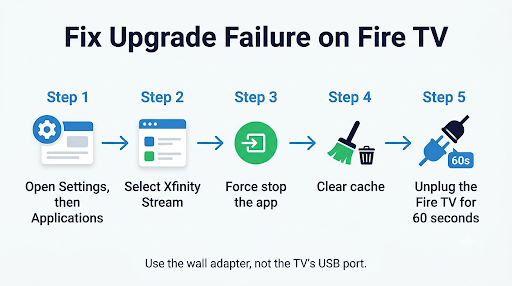
1. Force Stop the App and Clear the Cache
This clears out temporary files without signing you out.
- From the Fire TV home screen, open Settings (the gear icon).
- Select Applications > Manage Installed Applications.
- Choose Xfinity Stream.
- Select Force Stop.
- Select Clear Cache.
- Open the app again.
Tip: Don’t skip Force Stop. If you clear the cache while the app is still running in the background, it can rebuild the same bad files right away.
2. Power Cycle the Fire TV Device
Restarting from the menu isn’t always enough. A full power cycle clears the device’s memory and any update that got stuck.
- Unplug the Fire TV or Firestick from its power adapter or the wall outlet. Don’t just turn off the TV.
- Wait at least 60 seconds. Waiting up to 3 minutes works better if the error is stubborn.
- Plug it back in and wait for the home screen to load fully.
- Launch Xfinity Stream.
A common mistake is powering the Firestick from the TV’s USB port. When the TV turns off, the stick may stay powered or only partly reset. Use the wall adapter that came with the device.
3. Update Fire OS
An outdated operating system can stop the latest Stream app from installing properly.
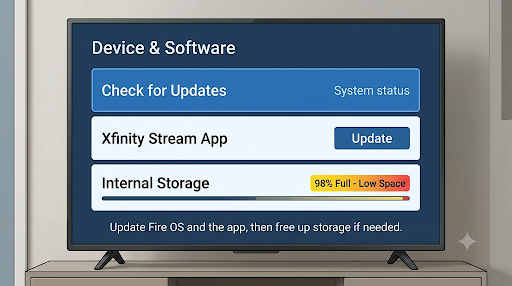
- Go to Settings > My Fire TV > About.
- Select Check for Updates.
- If an update appears, choose Install Update and let the device restart.
4. Update the Xfinity Stream App Manually
Automatic updates on Fire TV don’t always finish, especially when storage is low. Updating by hand forces the latest version onto the device.
- Use the search icon on the Fire TV home screen to find Xfinity Stream.
- Open the app’s Appstore page.
- If you see Update, select it and wait for it to finish.
If the update keeps failing, check your free space under Settings > My Fire TV > About > Storage. Firesticks have limited built-in storage. Uninstalling a few apps you never use often lets a stuck update finish.
5. Clear Data (Full App Reset)
Clear Data goes further than Clear Cache. It resets the app to a fresh-install state, so you’ll need to activate it again with the code shown on screen.
- Go to Settings > Applications > Manage Installed Applications > Xfinity Stream.
- Select Force Stop, then Clear Data.
- Open the app and sign in again.
If the app keeps sending you back to the sign-in screen after this, see our guide on fixing the Xfinity Stream sign-in loop.
6. Uninstall, Restart, and Reinstall
- In Manage Installed Applications, select Xfinity Stream > Uninstall.
- Unplug the Fire TV for 60 seconds. This step matters because it clears leftover files before the new install.
- Reinstall Xfinity Stream from the Amazon Appstore and activate it.
Why Doesn’t Reinstalling Fix the Upgrade Failure for Everyone?
Reinstalling only helps when the problem is on your device. If the error comes from a bug in the current Fire TV app version or on Xfinity’s servers, a fresh install downloads the same broken version and shows the same error.
Signs that it’s not your device:
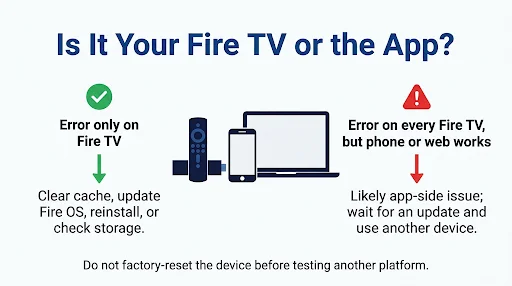
- Every Fire TV or Firestick in the house shows the error, even brand-new ones.
- The error started on several devices on the same day.
- Xfinity Stream works on Roku, your phone, or a web browser.
- The Xfinity Community Forum and Reddit have fresh threads from people with the same message.
If that sounds like your situation, stop resetting your devices. Repeated factory resets won’t help, and they wipe every app and setting on the device. A better move is to check for an app update every day or two and use another device in the meantime.
How Can You Get Past the Error Screen Without a Full Fix?
Some Fire TV users report that the app sometimes gets past the error after a restart and then sits on flashing loading dots. If that happens, press the Menu button (three horizontal lines) on the Fire TV remote. The left-side navigation menu may open so you can go straight to Live TV or your channel list.
This is a workaround, not a fix. It may not work every time, but it can get you watching while you wait for a patched app version.
How Can You Keep Watching Xfinity Stream While Fire TV Is Down?
Your Xfinity TV service still works. Only the Fire TV app is having trouble. You have a few options:
- Web browser: Go to xfinity.com/stream on a laptop in Chrome, Edge, Firefox, or Safari.
- Mobile app: Use the Xfinity Stream app on an iPhone, iPad, or Android device.
- Another streaming device: Use Roku, Apple TV, a Samsung or LG smart TV, or a Xumo Stream Box if you have one.
Keep in mind that most live channels only work in your home. If you plan to watch away from home, read up on watching Xfinity Stream outside your home network first.
What Should You Do If You See an Error Code Instead?
The upgrade failure message usually doesn’t come with a code. If a code appears after you try these fixes, the cause has changed and you need a different fix:
- TVAPP-00101: Usually a network or account check problem. See how to fix Xfinity Stream error TVAPP-00101.
- TVAPP-00166: Often linked to playback or device authorization. Follow our TVAPP-00166 troubleshooting steps.
- TVAPP-00907: Frequently appears when a stream fails to start. Here’s how to resolve error TVAPP-00907.
Common Mistakes That Keep the Error Coming Back
- Using a guest Wi-Fi network or a mobile hotspot. In-home channels need your Xfinity home network, so connect the Fire TV to your main network.
- Leaving a VPN or DNS app running on the Fire TV. It can make the app’s location and version checks fail. Turn it off and test again.
- Factory resetting too early. It erases everything and rarely fixes an app-side bug. Save it for last.
- Ignoring storage warnings. When a Firestick is almost full, app updates fail quietly.
- Keeping a very old device. A first-generation Fire TV Stick may not get the Fire OS updates the current app needs.
When Should You Contact Xfinity or Amazon?
Contact Xfinity if you’ve cleared data, reinstalled, and updated Fire OS and the error still shows on a supported device. Do the same if every Fire device in your home is affected. Tell them your exact device model, Fire OS version, and Stream app version. You’ll find the app version under Manage Installed Applications > Xfinity Stream. These details help the support team match your case to a known issue.
Contact Amazon Fire TV support if other apps also fail to update or the device can’t install system updates. That points to a problem with the device itself, not Xfinity.
Be careful with phone numbers in search results. Spam pages and fake listings often show “Xfinity support” numbers that aren’t Comcast’s. Only use the contact options on xfinity.com or in the Xfinity app.
Frequently Asked Questions
Does the upgrade failure error affect Samsung, LG, or Roku TVs?
Most reports come from Fire TV devices, including Fire TV sticks plugged into Samsung or LG TVs. If you see it on a Samsung or LG TV, check whether the TV is actually running the app through a Firestick. If the error is on the TV’s own app, update the TV’s software and reinstall Xfinity Stream from that TV’s app store.
Will clearing data delete my DVR recordings?
No. Cloud DVR recordings are stored on your Xfinity account, not on the Fire TV. Clearing data only removes the app’s local settings and signs you out on that device.
Is my Firestick too old for Xfinity Stream?
It might be if it can’t run Fire OS 6 or later. Check under Settings > My Fire TV > About. If no newer update is available and the app won’t install or update, the device may no longer be supported.
Why does Xfinity Stream work on my phone but not my Firestick?
Each platform uses a separate version of the app. An update problem in the Fire TV version won’t affect the iPhone, Android, or web versions, so your account and subscription are fine.
Does streaming Xfinity on Fire TV use my internet data?
According to Xfinity, using the Stream app on Amazon Fire TV at home doesn’t count against your internet data usage. Away from home, it counts like any other streaming service.
How long does it take Xfinity to fix a widespread app issue?
There’s no set timeline. It depends on when Xfinity releases a patched version and when it passes Amazon Appstore review. Check the app’s Appstore page every day or two for an update instead of reinstalling again and again.
Final Recommendation
Start with the quick fixes: force stop, clear the cache, unplug the device for a full minute, and update both Fire OS and the Stream app. That solves most problems that are limited to one device. If the error shows on every Fire device in your home while Roku or your phone still works, stop resetting things. Watch on another device, check the Appstore for a new Xfinity Stream version, and contact Xfinity with your device and app version details so your case is counted with the known issue.