If Peacock won’t load, keeps crashing, or shows the “Something went wrong” screen, the fix is usually quick: force close the app, restart your device and router, turn off any VPN or ad blocker, then clear the Peacock cache or reinstall the app. These steps clear out the corrupted data, stuck sessions, and network blocks behind most Peacock errors.
The tricky part is that “Something went wrong” is a generic message. It can show up at launch, at sign-in, or right when a show starts playing. This guide helps you match the error to its real cause, so you fix it once instead of guessing.
Quick Overview
- Check if Peacock is down for everyone before you change anything on your device.
- Force close Peacock and any other apps running in the background, then reopen it.
- Power cycle your device and router by unplugging them for about 20 to 30 seconds.
- Test your internet speed. Peacock recommends at least 3.0 Mbps.
- Turn off VPNs, proxies, and ad blockers, then try again.
- Update the Peacock app and your device software.
- Clear the Peacock cache and data, or uninstall and reinstall the app.
- Stop extra streams. Peacock allows up to three streams at once on one account.
Why Does Peacock Keep Saying “Something Went Wrong”?
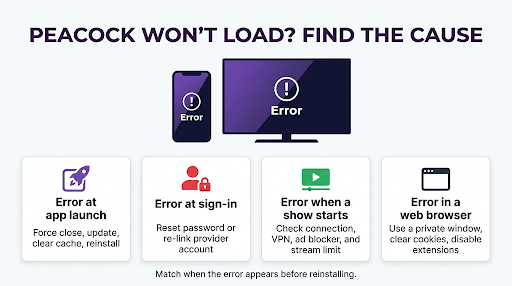
Peacock shows “Something went wrong” when the app can’t finish a task, such as loading your profile, checking your account, or starting a video. The most common causes are corrupted app cache, a weak or blocked internet connection, a VPN or ad blocker, an outdated app or device, or an account problem like hitting the stream limit.
Where the error appears is your best clue. Use this table to narrow it down:
| When the Error Appears | Most Likely Cause | Best First Fix |
| Right when the app opens | Corrupted cache, outdated app, or unsupported device | Force close, update, then clear cache or reinstall |
| At sign-in | Wrong password, expired session, or provider linking issue | Reset your password or re-link your provider account |
| When a show starts playing | Weak connection, VPN, ad blocker, or stream limit | Turn off VPN and ad blockers, check speed, stop other streams |
| Only in a web browser | Browser extensions, old cookies, or an outdated browser | Try a private window, then clear Peacock cookies |
| On every device at once | Peacock outage or a home network problem | Check outage reports and restart your router |
Is Peacock Down Right Now or Is It Just You?
Peacock does not run a public status page, so the fastest way to check is to look at @PeacockTVCare on X and outage trackers like Downdetector. If lots of people are reporting the same problem at the same time, the issue is on Peacock’s side and no device fix will help. You just have to wait.
You can also run a quick test at home. Open Peacock on a second device, like your phone on mobile data. If it works there but not on your TV, the problem is your TV, streaming stick, or home Wi-Fi, not Peacock’s servers.
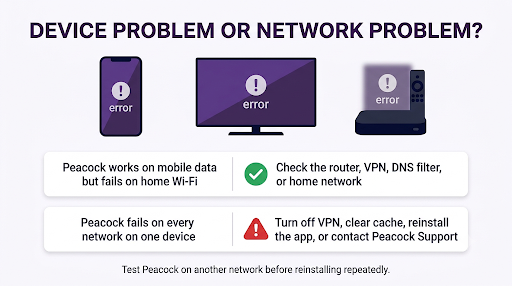
Pro Tip! Outage reports often spike during big live events and popular new episode drops. If Peacock fails only during a major game or premiere, wait a few minutes and try again before you start reinstalling anything.
How Do You Fix Peacock When It Won’t Load or Crashes?
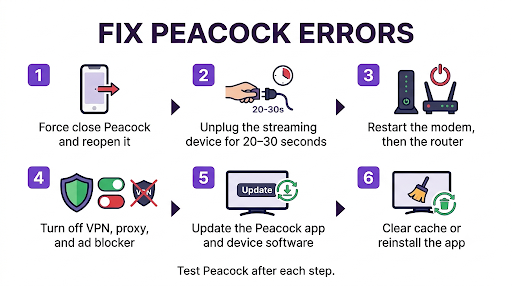
Work through these steps in order. They start with the quickest fixes and move toward the bigger ones. The first five follow Peacock’s official device troubleshooting steps, with extra fixes that top-ranking guides and real user reports point to.
1. Force Close Peacock and Reopen It
Pressing Home doesn’t always close Peacock. The app can stay frozen in the background and load the same error again. Fully quit Peacock and any other apps running in the background, then open it fresh.
- iPhone or iPad: Swipe up from the bottom and hold, then swipe the Peacock card away.
- Android phone: Go to Settings > Apps > Peacock > Force stop.
- Fire TV: Go to Settings > Applications > Manage Installed Applications > Peacock > Force stop.
- Apple TV: Double-press the TV button, then swipe up on the Peacock preview.
2. Power Cycle Your Device and Router
A real restart clears temporary memory that a quick sleep mode does not. Peacock recommends fully powering down or unplugging your device, waiting about 20 seconds, and turning it back on.
- Turn off your TV, streaming stick, or console.
- Unplug it from the wall, along with your modem and router.
- Wait 20 to 30 seconds.
- Plug in the modem first, then the router, and wait until the internet light is steady.
- Plug your streaming device back in and open Peacock.
3. Check Your Internet Speed and Free Up Bandwidth
Peacock needs a steady connection, not just a fast one. Peacock recommends a minimum speed of 3.0 Mbps, but that is a floor. If several people are streaming, gaming, or downloading at the same time, Peacock can still stall on the loading screen.
- Run a speed test on the same device you watch Peacock on, if it has one.
- Pause large downloads, game updates, and cloud backups.
- Disconnect devices you aren’t using from your Wi-Fi.
- Move your router closer to your TV, or use a wired Ethernet connection if your device supports it.
- Switch from Wi-Fi to mobile data on your phone to see whether your home network is the problem.
Peacock’s guide to slow loading and buffering says reducing the number of devices on the same network can speed up your stream.
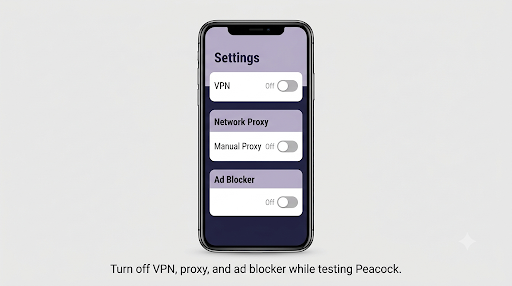
4. Turn Off Your VPN, Proxy, or Ad Blocker
VPNs and ad blockers are some of the most reported causes of the “Something went wrong” screen. Peacock checks your location before it plays anything, and it is built for viewers in the U.S. and some U.S. territories. A VPN or proxy can make Peacock think you’re somewhere else, so it blocks the stream.
Ad blockers can cause trouble too, especially on the free and ad-supported plans. If Peacock can’t load its ads, the video may never start.
- Turn off your VPN app completely, not just pause it.
- Disable any proxy or Smart DNS set up on your router or device.
- Turn off ad-blocking extensions or browser shields for peacocktv.com.
- If you use a privacy feature like iCloud Private Relay, turn it off for a quick test.
If Peacock shows a region or location message instead of the generic error, see our guide on fixing Peacock error OVP_00012 for the exact steps.
5. Update the Peacock App and Your Device
Peacock regularly drops support for older app versions and older software. An outdated app can crash at launch or fail to load the home screen.
- Phones and tablets: Open the App Store or Google Play Store and update Peacock.
- Smart TVs and streaming devices: Check the system settings for a software update, and turn on automatic app updates if your device offers it.
- Web browsers: Update Chrome, Edge, Firefox, or Safari to the latest version.
6. Clear the Peacock Cache and Data
The cache stores temporary files that help Peacock load faster. When those files get corrupted, the app can crash or loop back to the error screen. Clearing the cache is safe. Clearing data will sign you out, so keep your email and password handy.
The steps depend on your device. See the device table in the next section.
7. Uninstall and Reinstall Peacock
If nothing else works, a fresh install replaces any broken app files. Delete Peacock, restart your device, then download it again from your device’s app store and sign back in.
Important Point to be Considered! Reinstalling Peacock removes any shows or movies you downloaded for offline viewing on that device. Your account, profiles, and subscription stay safe because they live on Peacock’s servers.
How Do You Clear the Peacock Cache on Your TV or Streaming Device?
On most Android-based devices, you can clear the Peacock cache from the app settings. On Roku, Apple TV, and LG TVs, there is no clear cache button, so a full restart or reinstall does the same job.
| Device | How to Clear Peacock Cache |
| Samsung Smart TV (2020 and newer) | Settings > All Settings > Support > Device Care > Manage Storage > Peacock > View Details > Clear Cache |
| Fire TV and Fire Stick | Settings > Applications > Manage Installed Applications > Peacock > Clear cache |
| Android TV and Google TV | Settings > Apps > Peacock > Clear cache |
| Android phone or tablet | Settings > Apps > Peacock > Storage > Clear cache |
| Roku | No cache option. Remove the Peacock channel, go to Settings > System > Power > System restart, then add Peacock again |
| Apple TV | No cache option. Delete the Peacock app, restart Apple TV, then reinstall it from the App Store |
| iPhone or iPad | Settings > General > iPhone Storage > Peacock > Offload App, then tap Reinstall App |
| LG Smart TV | No cache option. Unplug the TV for about a minute, or delete and reinstall Peacock from the LG Content Store |
Menu names can vary a little by model and software version. Samsung’s own guide to clearing app cache and data notes that steps may differ depending on your TV model.
Is Your Device Still Supported by Peacock?
If Peacock crashes on startup no matter what you try, your device may be too old. Peacock updates its minimum requirements over time, and older streaming sticks, TVs, and browsers can stop working even if the app was fine before.
Here are some of the current minimums from Peacock’s supported devices list:
- Web browsers: Chrome 125+, Firefox 127+, and Microsoft Edge 125+ on Windows or Mac, plus Safari 17.3+ on Mac
- Phones and tablets: Android 7.0 or later and iOS 16 or later
- Apple TV: Apple TV HD (4th generation) or later running tvOS 18 or later
- Fire TV: Fire OS 6 or later. Peacock is not currently supported on the Fire Max 11 tablet
- Samsung Smart TVs: 2017 models or later
- LG TVs: webOS 3.5 or later
- VIZIO: SmartCast TVs from 2016 or newer
- Chromecast: 2nd generation or later, including Chromecast with Google TV
- Game consoles: PlayStation 4, PlayStation 5, Xbox One, and Xbox Series X|S
- Roku: Specific models only, such as Roku Streaming Stick 3600X or later and Roku TVs 5000X or later
Pro Tip! If your TV is no longer supported, you don’t need a new TV. A newer streaming stick plugged into the HDMI port is usually the cheapest way to get Peacock working again.
How Do You Fix “Something Went Wrong” on a Computer or Web Browser?
On a computer, Peacock errors usually come from browser extensions, old cookies, or an outdated browser. The quickest test is to open peacocktv.com in a private or incognito window. If it works there, an extension or saved site data is the problem.
- Open a private window (Ctrl + Shift + N in Chrome and Edge, Ctrl + Shift + P in Firefox, Command + Shift + N in Safari).
- Sign in to Peacock and try to play a show.
- If it works, go back to your normal window and turn off extensions one by one, starting with ad blockers and VPN extensions.
- Clear cookies and site data for peacocktv.com only, so you don’t sign out of every other site.
- Update your browser, then restart it.
- Still stuck? Try a different supported browser, like switching from Firefox to Chrome or Edge.
Some users see a longer message such as “Something went wrong. Sorry, your system configuration is not compatible with Peacock (6007).” That usually points to an outdated browser or a blocking extension. Brave users may also need to lower Shields for Peacock, since its built-in ad and tracker blocking can stop the player from loading.
For more browser-specific fixes, including Safari and Chrome settings, read our full guide on Peacock not working in a web browser.
What Does “Something Went Wrong. Sorry, There Was a Playback Error” Mean?
This message means Peacock loaded fine but couldn’t start the video. It is usually caused by a slow or unstable connection, a VPN or ad blocker, or a temporary glitch with that one title.
- Try a different show. If other titles play, the problem is with that one video. Wait a bit and try again later.
- Check your connection and pause other heavy internet use in your home.
- Turn off VPNs and ad blockers, since they often block the video stream itself.
- Restart the app, then clear the cache if the error keeps returning.
A spinning wheel or a black screen with no error message usually has the same causes. Treat it like a playback error and use the same steps.
Can Too Many Devices Cause the “Something Went Wrong” Error?
Yes. Peacock allows up to three streams at the same time on one account. If a fourth device tries to play something, Peacock blocks it, and on some devices that shows up as a general error instead of a clear stream limit message.
According to Peacock’s help page on the simultaneous streams limit, a crashed browser or app can still count as an active stream for a short time. Peacock suggests waiting about 10 minutes before trying again.
- Ask others on your account to stop watching for a moment.
- Close Peacock fully on devices you aren’t using, instead of leaving a show paused.
- If a device just crashed, wait about 10 minutes, then try again.
- If you share your account and don’t recognize the activity, change your password.
Why Does Peacock Say “Something Went Wrong” at Sign-In?
If the error appears when you sign in, it is usually an account problem, not your device. A wrong password, an expired session, or a problem linking Peacock to a cable or internet provider can all trigger it.
- Reset your password using the “Forgot Password?” link on the Peacock sign-in screen, then try again.
- Sign in on the website first. Open peacocktv.com in a private window and sign in there to confirm your account works.
- Check your subscription. A failed payment or expired plan can send you to an error or a subscribe screen.
- Re-link your provider account. If you get Peacock through Xfinity, Spectrum, or another provider, the link between accounts can break after you move, change plans, or switch email addresses.
Xfinity customers who see a message saying the account is already linked to another Peacock account can follow our guide on fixing Peacock error PPG_0017.
How Do You Fix Peacock on Roku, Fire TV, Apple TV, and Smart TVs?
The general steps above fix most devices, but each platform has a few habits worth knowing.
Roku
If Peacock spins and then kicks you back to the Roku home screen, remove the Peacock channel, restart your Roku from Settings > System > Power > System restart, and add the channel again. Then check for updates in Settings > System > System update. Older Roku models may not be supported anymore.
Fire TV and Fire Stick
Fire TV gives you a real clear cache button, so start there. If Peacock started crashing right after an update, force stop it, clear the cache, and restart the Fire Stick from Settings > My Fire TV > Restart. If you installed Peacock from outside the Amazon Appstore, uninstall it and get the official version instead.
Apple TV
Apple TV has no clear cache option. Delete Peacock, restart the Apple TV from Settings > System > Restart, and reinstall it. Make sure you’re running tvOS 18 or later, since Peacock now requires it.
Samsung, LG, and VIZIO Smart TVs
If Peacock fails on your smart TV but Netflix and other apps work, the Peacock app itself is the issue. Clear its cache on Samsung, or unplug the TV for a full minute on LG and VIZIO. Then update the TV software. Some LG owners report that a delete and reinstall from the LG Content Store is the only thing that clears a stubborn startup error.
iPhone, iPad, and Android
On phones, try switching between Wi-Fi and mobile data first. If Peacock works on one but not the other, the network is the problem. If you see a message about accessing Peacock from a more secure device, avoid public or hotel Wi-Fi and switch to your home network or mobile data.
Why Does Peacock Crash Only During Live Sports or New Episodes?
Live events and big premieres bring huge numbers of viewers at the same moment. That can strain Peacock’s servers and your own home network, especially when several people are watching. If Peacock fails only during these moments, the cause is often demand, not your device.
- Back out of the stream and start it again instead of waiting on a frozen screen.
- Lower your video quality if your device lets you.
- Pause other streams and downloads in your home during the event.
- Check @PeacockTVCare for any updates about the event.
When Should You Contact Peacock Support?
Contact Peacock support if you’ve worked through every step, Peacock still fails on more than one device, and there is no outage. You can reach Peacock through its Help Center chat or by messaging @PeacockTVCare on X.
Have these details ready so they can help faster:
- Your device and model, like a Roku Streaming Stick 4K or a 2021 Samsung TV
- The exact error message, and any error code shown on screen
- When it happens: at launch, at sign-in, or when a video starts
- The steps you’ve already tried
- How you pay for Peacock, directly or through a provider like Xfinity
Common Mistakes That Keep the Error Coming Back
- Only pressing Home instead of fully closing the app. Peacock keeps running and reloads the same error.
- Turning off the TV with the remote instead of unplugging it. Many TVs only go into standby, which doesn’t clear memory.
- Leaving a VPN running in the background. Some VPNs reconnect on their own after a restart.
- Clearing all browser data. You only need to clear cookies for peacocktv.com.
- Reinstalling without restarting first. A restart between delete and reinstall gives you a truly clean install.
- Calling third-party “Peacock support” phone numbers. Only use Peacock’s official Help Center or verified social accounts.
Frequently Asked Questions
Why does Peacock work on my phone but not on my TV?
That usually means the problem is with your TV or streaming device, not your account. Your TV may need a software update, the Peacock app on it may have corrupted cache, or the device may no longer be supported. Clear the cache or reinstall Peacock on the TV, and check that its model meets Peacock’s current requirements.
What is the “Something went wrong” screen with the cat on Peacock?
The cat picture is just Peacock’s design for its general error screen. It doesn’t point to a specific problem on its own. Look at when it appears, at launch, sign-in, or playback, to figure out which fix to try first.
Will clearing the Peacock cache delete my account or watch history?
No. Clearing the cache only removes temporary files on your device. Your account, profiles, watchlist, and progress are saved on Peacock’s servers. Clearing app data will sign you out, so you’ll just need to sign back in.
Does Peacock work outside the United States?
Peacock is built for viewers in the U.S. and some U.S. territories. If you’re traveling abroad, you may see a location error or “Something went wrong” when you try to stream, even with an active subscription.
Why does Peacock keep crashing after an update?
A new update can clash with old cached files left from the previous version. Force stop Peacock, clear its cache, and restart your device. If it still crashes, uninstall and reinstall the app. If many people report the same crash after an update, Peacock may need to release a fix.
Can my internet provider cause Peacock errors?
Yes, sometimes. Router settings, parental controls, DNS filters, or network security features from your provider can block parts of Peacock. Try mobile data or a different Wi-Fi network. If Peacock works there, check your router’s security or filtering settings, or contact your internet provider.
Final Recommendation
Start simple. Check for an outage, force close Peacock, and power cycle your device and router. Those three steps fix a large share of loading and crash problems in a couple of minutes. If the error keeps coming back, turn off your VPN or ad blocker, update everything, and clear the Peacock cache or reinstall the app.
If the error shows up only at sign-in, focus on your password and provider link. If it only happens in a browser, test a private window first. And if your device is several years old, check Peacock’s supported devices list before you spend more time troubleshooting. A newer streaming stick may be the real fix.