If Peacock is not working in your web browser, the cause is usually one of four things: an outdated or unsupported browser, an ad blocker or extension getting in the way, corrupted cookies and cache, or a network issue like a VPN. Start by opening Peacock in a private or incognito window. If it plays there, the problem is your browser data or an extension, not your account.
Below, you will find the quick checks that fix most cases, plus step-by-step fixes for Chrome, Safari, Microsoft Edge, and Brave, and what to do when Peacock says your browser is not supported.
Quick Overview
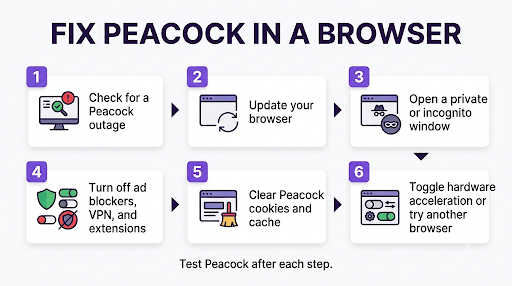
- Check if Peacock is down before changing anything on your computer.
- Update your browser. Peacock currently lists Chrome 125+, Firefox 127+, and Edge 125+ on Windows and Mac, plus Safari 17.3+ on Mac.
- Test a private or incognito window to rule out extensions and bad site data.
- Turn off ad blockers, Brave Shields, and VPNs for peacocktv.com.
- Clear Peacock cookies and cache, then sign back in.
- Toggle hardware acceleration if you get a black screen, freezing, or stutter.
- Switch to Chrome or Edge if you use Brave, Opera, Vivaldi, Linux, or a Chromebook, since those are not on Peacock’s supported list.
Which Browsers Does Peacock Support?
Peacock officially supports four desktop browsers: Chrome, Firefox, Microsoft Edge, and Safari. According to Peacock’s supported devices page, these are the current minimum versions:
| Browser | Minimum Version | Operating System | Officially Supported? |
| Google Chrome | 125 or newer | Windows, Mac | Yes |
| Microsoft Edge | 125 or newer | Windows, Mac | Yes |
| Mozilla Firefox | 127 or newer | Windows, Mac | Yes |
| Apple Safari | 17.3 or newer | Mac only | Yes |
| Brave, Opera, Vivaldi, other Chromium browsers | Not listed | Varies | No |
Two things stand out here. First, the list only names Windows and Mac. Linux and ChromeOS are not listed, which is why Chromebook and Linux users often see “browser not supported” even in Chrome. Second, Safari support is for Mac only. On an iPhone or iPad, Peacock expects you to use the app, which needs iOS 16 or later. Android phones need Android 7.0 or later.
Important Point to be Considered! Peacock raises these minimum versions over time. Older lists showed Chrome 112 and Safari 14, so a browser that worked last year can suddenly get blocked after Peacock updates its requirements. If your computer can no longer update its browser (for example, an older Mac stuck on an old macOS), that is often the real reason Peacock stopped working.
Why Is Peacock Not Working on My Browser?
Most browser problems come from something on your side of the connection, not a Peacock outage. Here are the common causes and the symptom each one tends to produce:
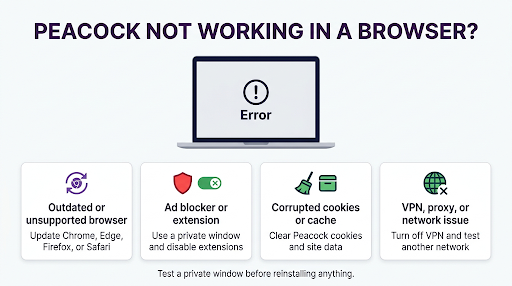
- Outdated or unsupported browser: “Oh no! This browser is not supported” or a system configuration error.
- Ad blockers, privacy extensions, or Brave Shields: a generic “Something went wrong” screen, videos that never start, or ad breaks that freeze.
- Corrupted cookies or cache: sign-in loops, a page that will not scroll, or a menu that loads but nothing plays.
- DRM (Widevine) disabled or broken: a black screen or a playback error, even though the site loads fine.
- Hardware acceleration glitches: black video with audio, stuttering, or crashes.
- VPN, proxy, or custom DNS: location errors or blocked streams. Peacock is a U.S. streaming service.
- Too many active streams: a simultaneous streams limit message.
- Weak or crowded Wi-Fi: slow loading and constant buffering.
How Do You Fix Peacock Not Working in Any Browser?
Work through these general fixes in order. They apply to Chrome, Safari, Edge, Brave, and Firefox, and they solve most cases before you need browser-specific steps.
1. Check Whether Peacock Is Down
Start here so you do not waste time on fixes that cannot help. Look at the Peacock status page on Downdetector for a spike in user reports. If lots of people are reporting the same problem at the same time, wait it out. Big live events like Sunday Night Football can also put extra strain on the service.
2. Hard Refresh or Restart the Browser
A hard refresh reloads the page without using saved files. Press Ctrl + F5 (or Ctrl + Shift + R) on Windows, or Cmd + Shift + R on a Mac. If that does not help, close every browser window, wait a few seconds, and reopen it. A full restart clears stuck sessions that a simple tab refresh leaves behind.
3. Update Your Browser
Updating fixes “browser not supported” messages and many playback errors. Compare your version against the table above. Each browser’s update path is covered in its own section below.
4. Test in a Private or Incognito Window
A private window loads Peacock without your saved cookies and, in most browsers, without your extensions. This is the fastest way to find the cause:
- Works in private mode: the problem is an extension or your saved site data. Move to steps 5 and 6.
- Still fails in private mode: look at your network, VPN, DRM settings, hardware acceleration, or the browser itself.
5. Turn Off Ad Blockers and Extensions
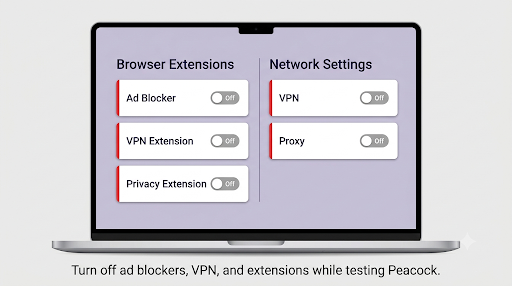
Ad blockers and privacy tools can block the scripts and cookies Peacock needs for playback and ads. Pause your ad blocker for peacocktv.com, or disable all extensions and turn them back on one at a time to find the one causing trouble. Script blockers, VPN extensions, and cookie managers are common culprits too, not just ad blockers.
Pro Tip! Network-level blockers can cause the same errors even when your browser is clean. If you use a DNS filter, a Pi-hole, or a router-level ad blocker, pause it or allow Peacock’s domains before you keep troubleshooting.
6. Clear Peacock Cookies and Cache
Corrupted site data is a top reason for login loops, pages that will not scroll, and “Something went wrong” screens. You can clear data for Peacock only instead of wiping everything. You will need to sign back in afterward, so keep your Peacock email and password handy.
7. Turn Off VPNs, Proxies, and Custom DNS
Peacock checks your location, and a VPN or proxy can trigger location errors or block streams. Disconnect your VPN, turn off any proxy, and try again. If you are traveling outside the U.S., Peacock content may not be available at all.
8. Toggle Hardware Acceleration
Hardware acceleration uses your graphics card to play video. When graphics drivers act up, you can get a black screen, freezing, or choppy playback. Turn the setting off, restart the browser, and test. If it was already off, try turning it on. Updating your graphics driver also helps.
9. Close Other Streams
Peacock allows up to three concurrent streams per account. If three are already playing, stop one. Peacock says you might need to wait about ten minutes before you can continue on another device. A browser that crashed mid-show can still count as an active stream for a while.
10. Check Your Connection
For buffering and slow loading, restart your modem and router, move closer to Wi-Fi or use a wired connection, and pause large downloads. Peacock also recommends reducing the number of devices using the same network at once.
How Do You Fix Peacock Not Working on Chrome?
On Chrome, the fix is usually updating the browser, clearing Peacock’s site data, and disabling extensions. Chrome is also the best fallback browser if another one fails.
- Update Chrome: click the three dots in the top-right corner, then go to Help > About Google Chrome. Let it update, then click Relaunch. You need Chrome 125 or newer.
- Clear browsing data: go to Settings > Privacy and security > Delete browsing data, select Cookies and other site data and Cached images and files, and choose a time range. You can also type chrome://settings/clearBrowserData in the address bar.
- Disable extensions: type chrome://extensions in the address bar and toggle off ad blockers and privacy tools.
- Check DRM: go to Settings > Privacy and security > Site settings > Additional content settings > Protected content IDs and make sure sites are allowed to play protected content.
- Toggle graphics acceleration: go to Settings > System and switch Use graphics acceleration when available off or on, then relaunch.
- Try Incognito: press Ctrl + Shift + N (Windows) or Cmd + Shift + N (Mac).
Pro Tip! If you use more than one Chrome profile, try a fresh profile. A new profile has no extensions or saved data, so it acts like a clean install without removing anything.
Why Does Peacock Say “Browser Not Supported” on a Chromebook?
Peacock’s supported browser list only names Windows and Mac, so ChromeOS is not officially covered. Some Chromebook owners report it worked for a while and then stopped with a “browser not supported” message. Updating ChromeOS is worth a try, but there is no guaranteed fix. If your Chromebook can run Android apps from the Google Play Store, the Peacock Android app may be a better option.
Why Does Peacock Not Work on Safari?
Peacock usually fails in Safari because the Safari or macOS version is too old, content blockers are active, or stored website data is corrupted. Safari 17.3 or newer on a Mac is required.
- Update Safari and macOS: Safari updates come through macOS. Go to Apple menu > System Settings > General > Software Update. If your Mac cannot reach a macOS version with Safari 17.3 or later, switch to Chrome or Firefox if your Mac supports a current version of them.
- Remove Peacock website data: open Safari > Settings > Privacy > Manage Website Data, search for “peacock,” select the entries, and click Remove.
- Turn off content blockers for Peacock: while on peacocktv.com, go to Safari > Settings for peacocktv.com and uncheck Enable content blockers.
- Disable Safari extensions: go to Safari > Settings > Extensions and uncheck ad blockers.
- Try a Private window: press Cmd + Shift + N.
Plenty of Mac users in the Apple Community report that Chrome worked when Safari did not, even after clearing cache. So if Safari keeps failing after these steps, switching browsers is a practical fix, not a last resort.
Can You Watch Peacock in Safari on an iPhone or iPad?
Peacock’s browser support covers Safari on Mac only. On an iPhone or iPad, use the Peacock app from the App Store instead, which requires iOS 16 or later. If the app will not open or keeps failing, delete and reinstall it, then restart your device.
How Do You Fix Peacock Not Working on Microsoft Edge?
On Edge, update the browser, clear Peacock’s cookies and cache, and relax tracking prevention or disable extensions that block scripts. Edge 125 or newer is required.
- Update Edge: click the three dots, then go to Help and feedback > About Microsoft Edge. Edge checks for updates automatically. Restart when asked.
- Clear browsing data: go to Settings > Privacy, search, and services, find Delete browsing data, and clear Cookies and other site data and Cached images and files.
- Check tracking prevention: if Edge is set to Strict, switch to Balanced or add peacocktv.com as an exception, then reload.
- Disable extensions: type edge://extensions and turn off ad blockers.
- Toggle hardware acceleration: type edge://settings/system and switch the hardware or graphics acceleration option off or on, then restart Edge.
- Try InPrivate: press Ctrl + Shift + N.
Pro Tip! If Peacock fails in Chrome but works in Edge (or the other way around), you have already learned something useful. Your account and network are fine, so the problem is limited to that one browser’s data, extensions, or settings.
Why Won’t Peacock Work on Brave Browser?
Peacock often fails on Brave because Brave is not on Peacock’s supported browser list, Brave Shields block scripts Peacock needs, and Brave ships with Widevine DRM turned off. You can try the fixes below, but there is no guarantee Brave will work, and Peacock support has told Brave users to switch to Chrome.
- Turn off Brave Shields for Peacock: on peacocktv.com, click the Brave lion icon in the address bar and toggle Shields off for the site. Reload the page.
- Enable Widevine: type brave://settings/extensions in the address bar, turn on Widevine, and click Relaunch. Per Brave’s guide to DRM-protected content, Widevine is disabled by default and must be installed before protected video can play.
- Check components: open brave://components and click Check for update under Widevine Content Decryption Module.
- Update Brave: go to brave://settings/help and relaunch after updating.
- Clear cookies: some Brave users fixed “Something went wrong” errors by clearing cookies for peacocktv.com.
- Disable extensions: Brave Community moderators suggest disabling extensions when Peacock works in a Private window but not a normal one.
Important Point to be Considered! Brave users have reported Peacock suddenly switching to a “browser not supported” message after working for months. When that happens, it is usually a change on Peacock’s end, and settings in Brave will not fix it. Avoid user-agent spoofing or unofficial DRM workarounds. They are unreliable, and Peacock can break them at any time. Chrome or Edge is the dependable fix.
What About Firefox, Linux, and Other Browsers?
Firefox 127 or newer is officially supported on Windows and Mac. If Peacock fails there, make sure Play DRM-controlled content is enabled under Settings > General > Digital Rights Management (DRM) Content, then try Troubleshooting Mode from the Help menu, which temporarily turns off extensions and hardware acceleration.
Linux is a different story. Peacock does not list Linux as supported, and Linux users regularly report “Something went wrong” errors in Chrome. The same goes for Opera, Vivaldi, and other Chromium-based browsers that are not on the list. If you are on one of these setups, a supported browser on Windows or Mac, a phone or tablet app, or a streaming device is the reliable route.
What Do Common Peacock Browser Error Messages Mean?
Each message points you to a different fix. Here is a quick guide:
| Error or Symptom | Likely Cause | What to Try |
| “Oh no! This browser is not supported.” | Outdated or unlisted browser or operating system | Update the browser, or switch to Chrome, Edge, Firefox, or Safari on Windows or Mac |
| “Sorry, your system configuration is not compatible with Peacock” | Browser version, DRM, or extension conflict | Update the browser, enable DRM, disable ad blockers |
| “Something went wrong. Please try again or check your internet connection.” | Blocked scripts, bad cookies, Shields, or network issues | Private window, clear cookies, pause blockers and VPN |
| Black screen with sound | Hardware acceleration, DRM, or screen sharing | Toggle hardware acceleration, stop screen recording or sharing |
| Simultaneous streams limit | Three streams already active | Stop a stream and wait up to ten minutes |
| Constant buffering | Slow or crowded network | Restart router, pause downloads, use a wired connection |
If you see the generic error screen over and over, our guide on fixing Peacock when it won’t load or shows “Something went wrong” walks through deeper fixes. For specific codes, see our breakdowns of Peacock error OVP_00012 and Peacock error PPG-0017.
Pro Tip! Streaming services protect their video with DRM, and many of them show a black screen while screen recording, screen sharing on Discord or Zoom, or certain capture tools are running. Close those apps before you blame the browser.
Why Can’t You Sign In to Peacock in Your Browser?
Browser sign-in problems are usually caused by a mistyped password or stale cookies. Peacock passwords are case-sensitive, so check Caps Lock and make sure you are using the email address registered to your account. If that is right, clear Peacock’s cookies, restart the browser, and sign in again. If you subscribe through a provider like Xfinity or Spectrum, make sure you are signing in the way that matches how your account was set up. Still stuck? Reset your password from the Peacock sign-in page.
What Should You Do If Nothing Works?
If none of the fixes help, narrow it down with these tests:
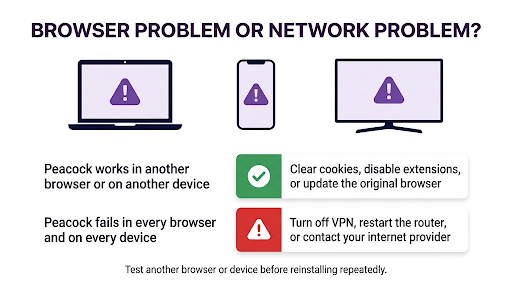
- Try another supported browser on the same computer. If it works, your original browser is the problem.
- Try another device, like your phone app or TV. If it works, your computer or browser is the issue, not your account.
- Try another network, like a phone hotspot. If it works, your home network, router, or DNS filter is blocking something.
- Restart your computer. Peacock’s own troubleshooting guide recommends a full power cycle, waiting about 20 seconds before turning it back on.
- Contact Peacock support through the Peacock Help Center. Have your browser name and version, operating system, and the exact error message ready.
Important Point to be Considered! Only use Peacock’s official Help Center for support. Pages that list “Peacock support” phone numbers on random sites are not affiliated with Peacock and may be scams.
Frequently Asked Questions
Why is Peacock not working on my Chrome browser all of a sudden?
A sudden failure in Chrome usually follows a browser update, a new extension, or a Peacock change to its minimum version. Check that Chrome is version 125 or newer, then test an Incognito window. If Incognito works, a recently added extension is the most likely cause.
Is Peacock down today, or is it just me?
Check Downdetector for a spike in reports. If reports are normal and Peacock works on your phone or TV, the problem is on your computer or browser, not Peacock’s servers.
Does Peacock work with an ad blocker?
Ad blockers often break Peacock playback, especially on ad-supported plans. Pause the blocker for peacocktv.com. If you want fewer ads, Peacock’s Premium Plus plan is the official option.
Can I watch Peacock on a laptop connected to my TV with HDMI?
It depends on your setup. Peacock has restricted HDMI output from computers in the past due to content protection, and some users still see black screens on external displays. If it fails, use the Peacock app on a smart TV, streaming stick, or console instead.
Why does Peacock work in Incognito mode but not in a normal window?
Incognito skips your saved cookies and most extensions. If it works there, clear Peacock’s site data in your normal window and disable extensions one at a time to find the conflict.
Do I need a VPN to watch Peacock in my browser?
No. Peacock is built for U.S. viewers, and a VPN is more likely to cause errors than fix them. Turn your VPN off when streaming Peacock at home in the U.S.
Final Recommendation
If Peacock is not working in your browser, start with the quick wins: check for an outage, update your browser, and test a private window. That one test tells you whether to focus on extensions and cookies or on your network and device. Chrome, Edge, and Firefox users can almost always fix it with updates and cleared site data. Safari users need 17.3 or newer on a Mac. Brave, Linux, and Chromebook users should know these setups are not officially supported, so switching to Chrome or Edge on Windows or Mac, or using the Peacock app, is the fastest path back to watching.